Table of Contents Tap to jump
HeliCalc Video Introduction
Overview
Modern helicopters have simple weight and balance calculation sheets. This Android App simplifies keeping track of one or more aircraft with their tail number linked to gross empty weight, longitudinal arm, and latitudinal arm.
The app allows saving a profile, which is the base set of those numbers. Those can then be edited to see if the flight would be in compliance with limitations, or not. The parameters can be saved and the filename will reflect the tail number and save date and time. That way if you and a copilot are used to flying with full fuel, you can edit those in, and save that profile. You can then use it for future flights, editing fuel load and back seat passengers to suit.
CG Envelopes
View both Longitudinal and Lateral CG envelopes and verify the aircraft position along the fuel-burn line from pickup to empty.
HIGE / HOGE Ceilings
Enter weight, field elevation or altitude, OAT, and altimeter setting to see where your HIGE and HOGE limits fall.
Custom Aircraft Profiles
Add custom helicopter types, place stations on the cabin diagram, refine exact lat/long arms, and toggle worksheet visibility.
ZIP Catalog Export
Export the entire catalog of stored profiles as a ZIP archive to email, Google Drive, local storage, or messaging apps.
PDF Flight Sharing
Share a completed flight profile—with all passengers, baggage, fuel, and removables—as a formatted PDF.
100% Offline & Private
Zero telemetry, zero ads, and no cloud account required. All aircraft data stays locally on your device.
Data Sources & Reference Links
R22B2, R44II, R66, B206B3); Step 5 covers creating and editing custom helicopter types; Step 6 covers the live on-device POH Self-Test & Verification Report. Click any screenshot below to inspect it full-screen.
Set Up Your Aircraft Profile
When you open the app, you can load existing profiles, manage backups, or create a new aircraft baseline using your helicopter's latest weight and balance sheet.
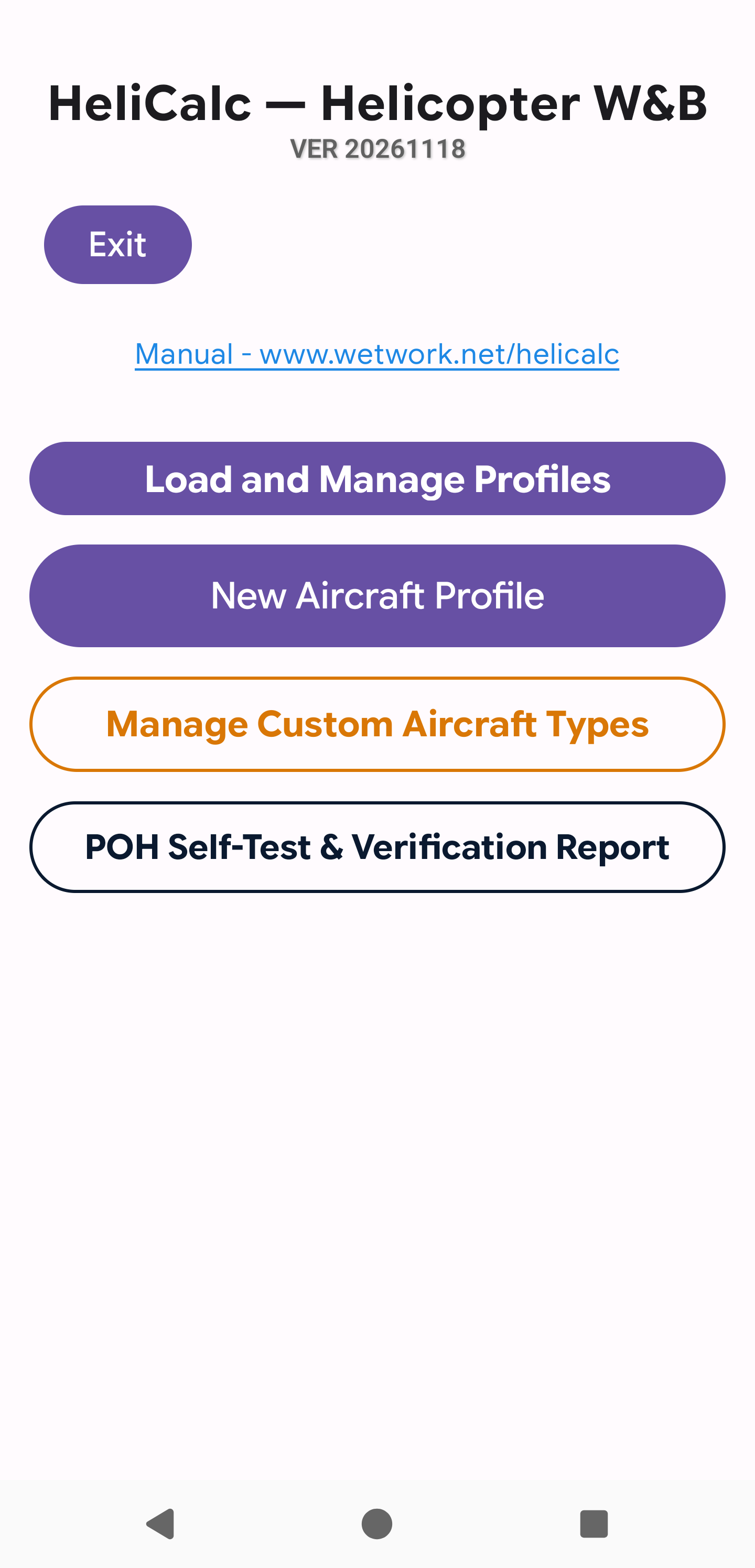
- Main Screen: Launch HeliCalc to access saved profiles, create a new aircraft profile, manage custom aircraft types, run the live POH Self-Test & Verification Report, or open this online manual.
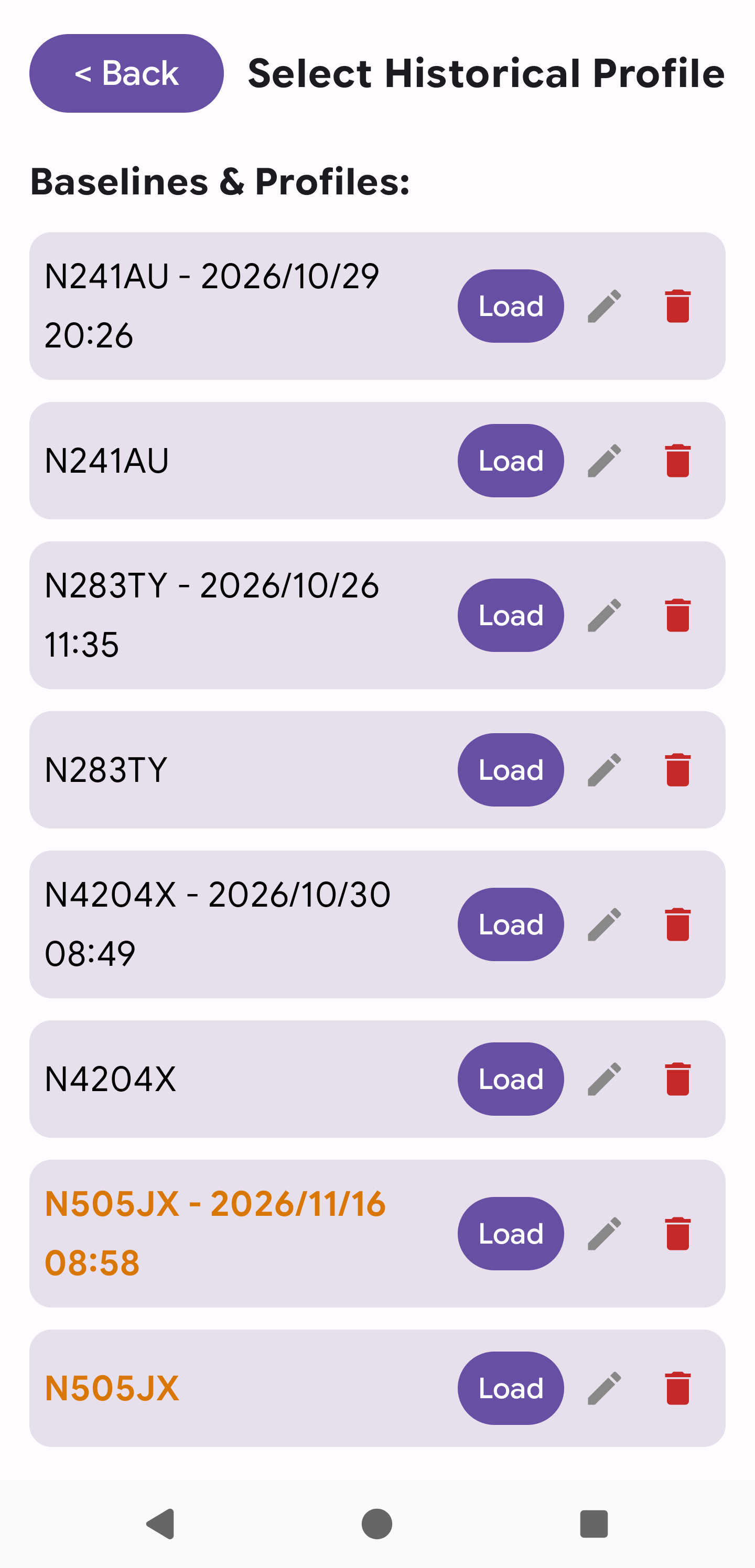
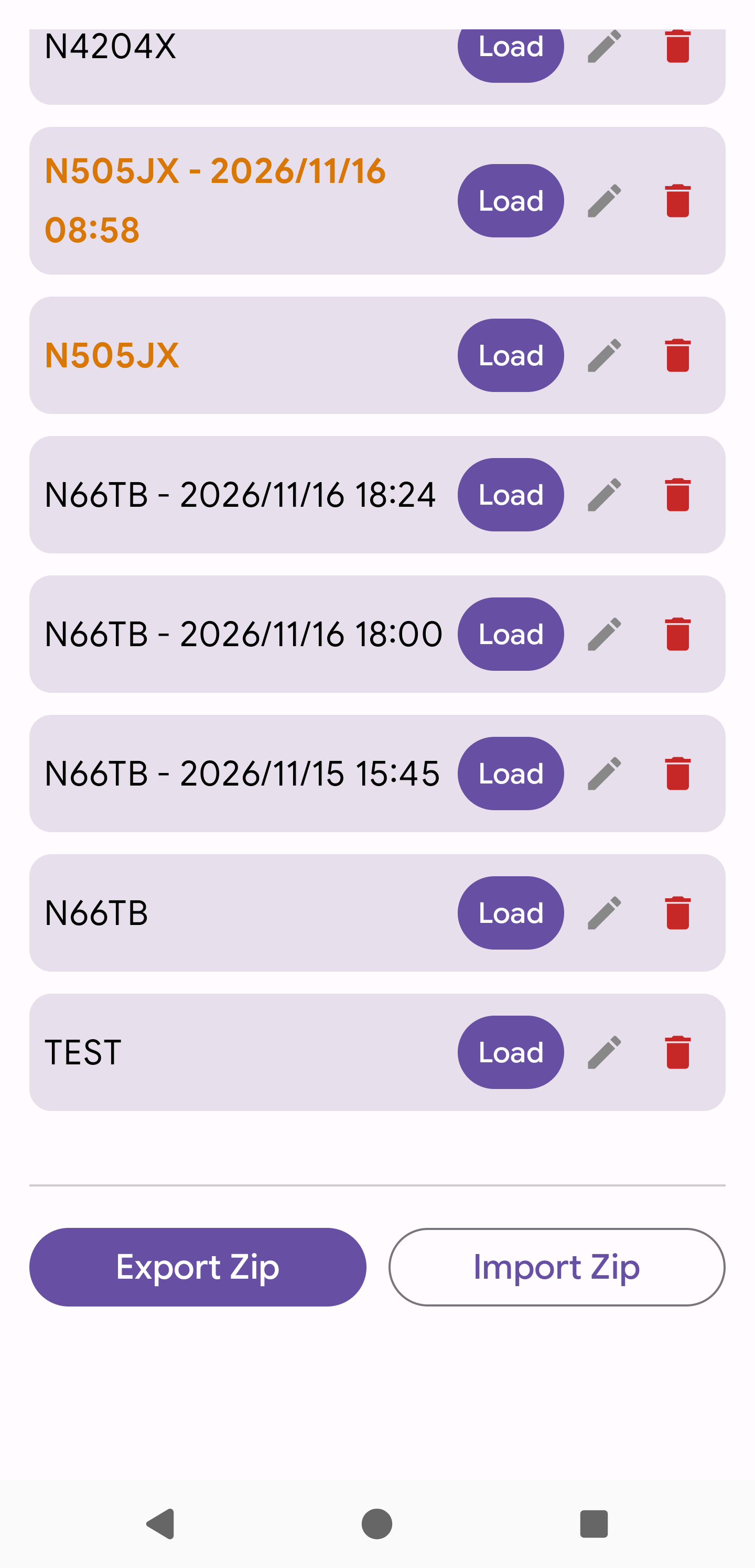
- Historical Profiles & Zip Backup/Restore: View saved baselines and timestamped flight profiles (verified built-in types appear in black; user-defined custom types appear in amber), with buttons to Load, Edit, Delete, or Export/Import all profiles as a ZIP archive.
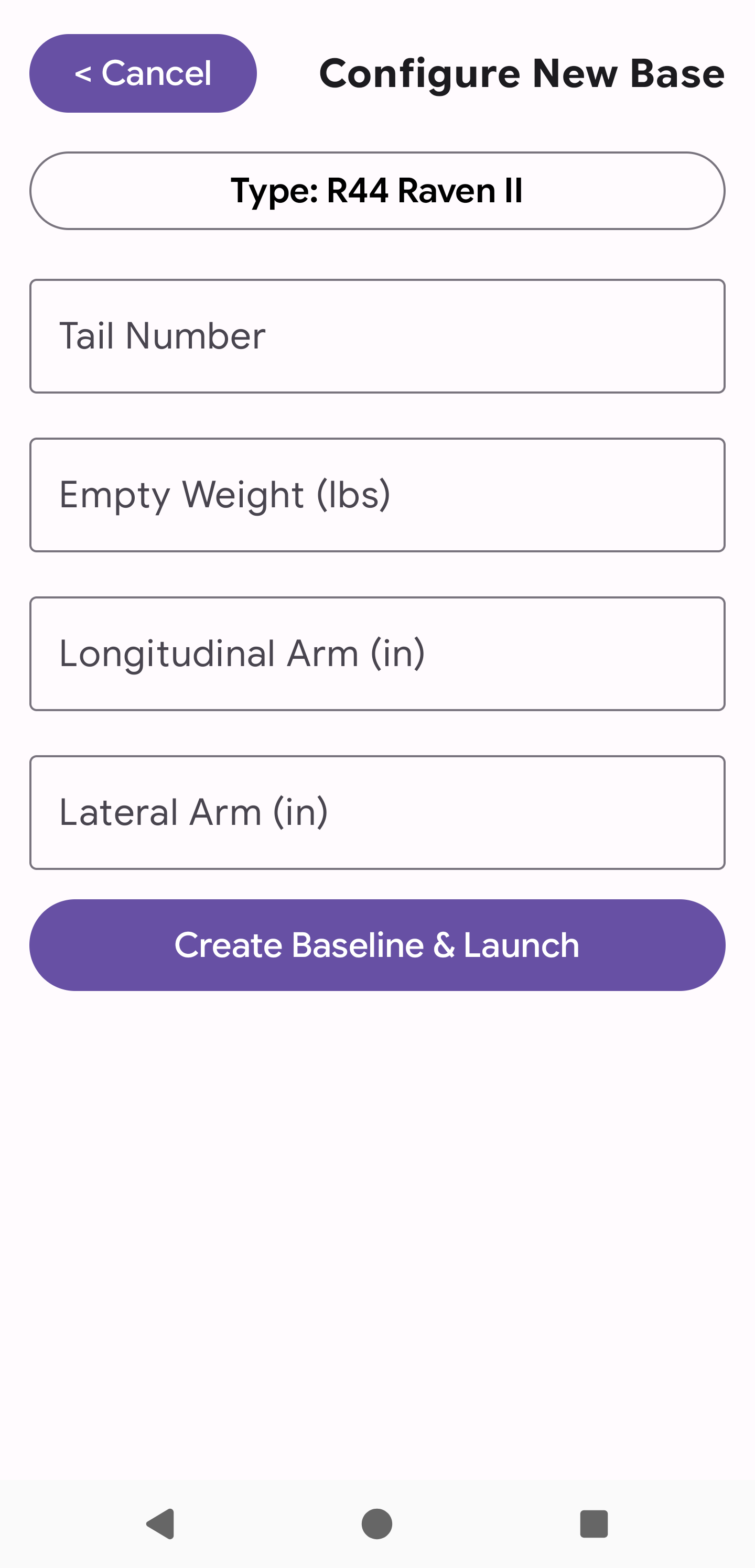
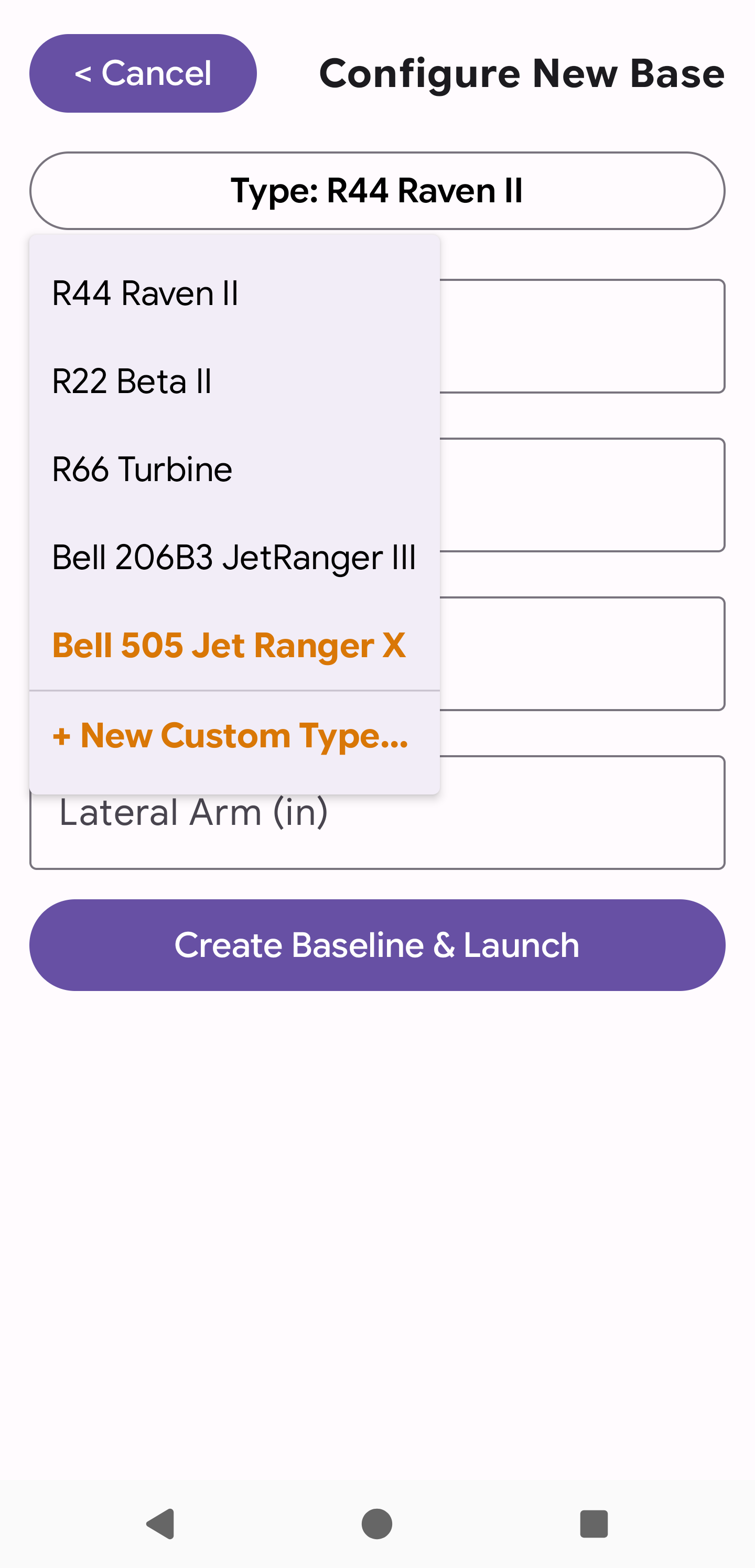
- Configure New Base Profile: Choose an aircraft type from the dropdown (R44 Raven II, R22 Beta II, R66 Turbine, Bell 206B3 JetRanger III, any custom type, or + New Custom Type...), then enter the Tail Number, Empty Weight, Longitudinal Arm, and Lateral Arm and tap Create Baseline & Launch.
Customize a Flight Scenario & Configuration
Once a profile is open, you can adjust passengers, baggage, and fuel for each flight without overwriting your baseline aircraft data, then save timestamped snapshots or share a PDF summary.
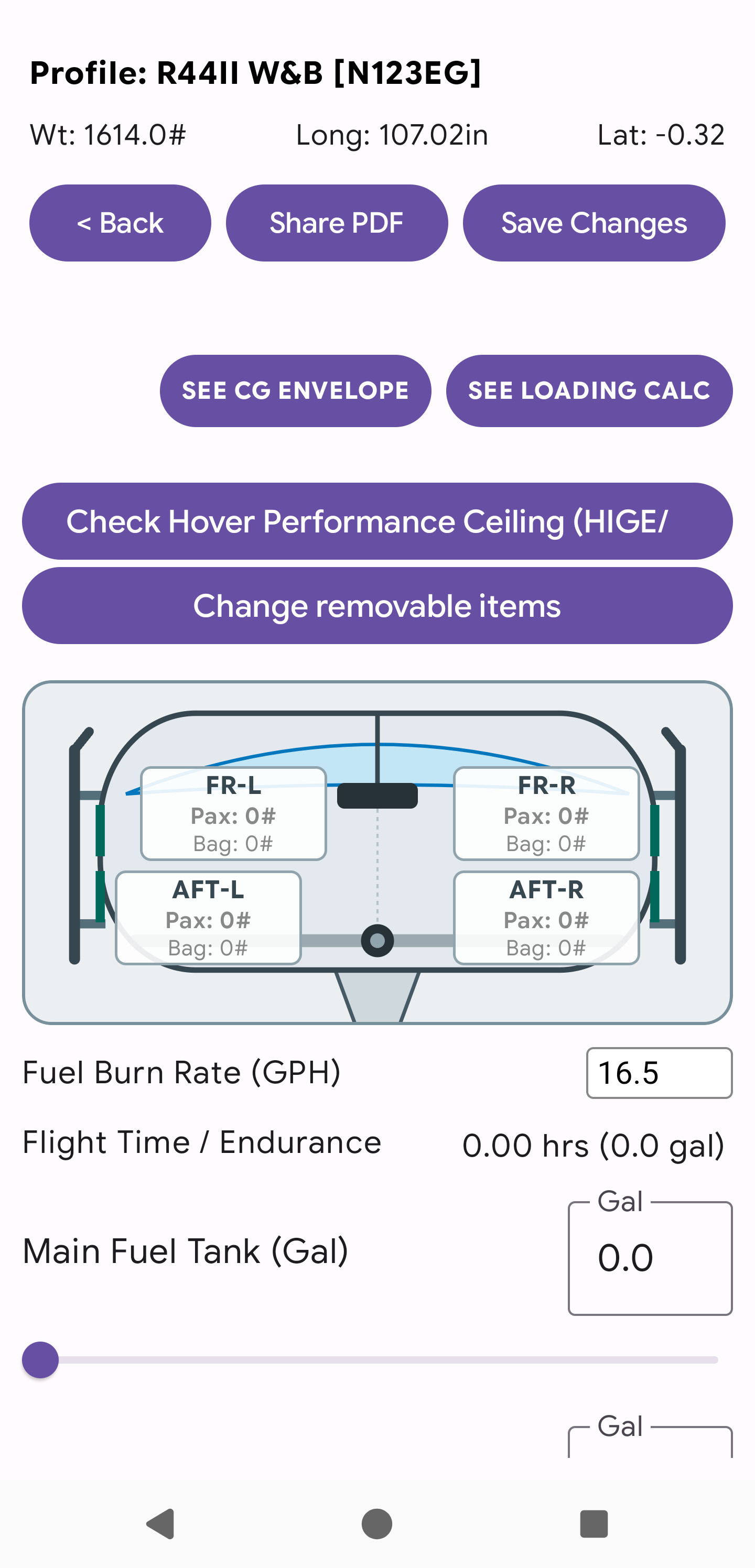
- Profile Overview & Actions: At the top, view empty weight and arms alongside buttons to Share PDF, Save Changes, SEE CG ENVELOPE, SEE LOADING CALC, Check Hover Performance Ceiling, and Change removable items.
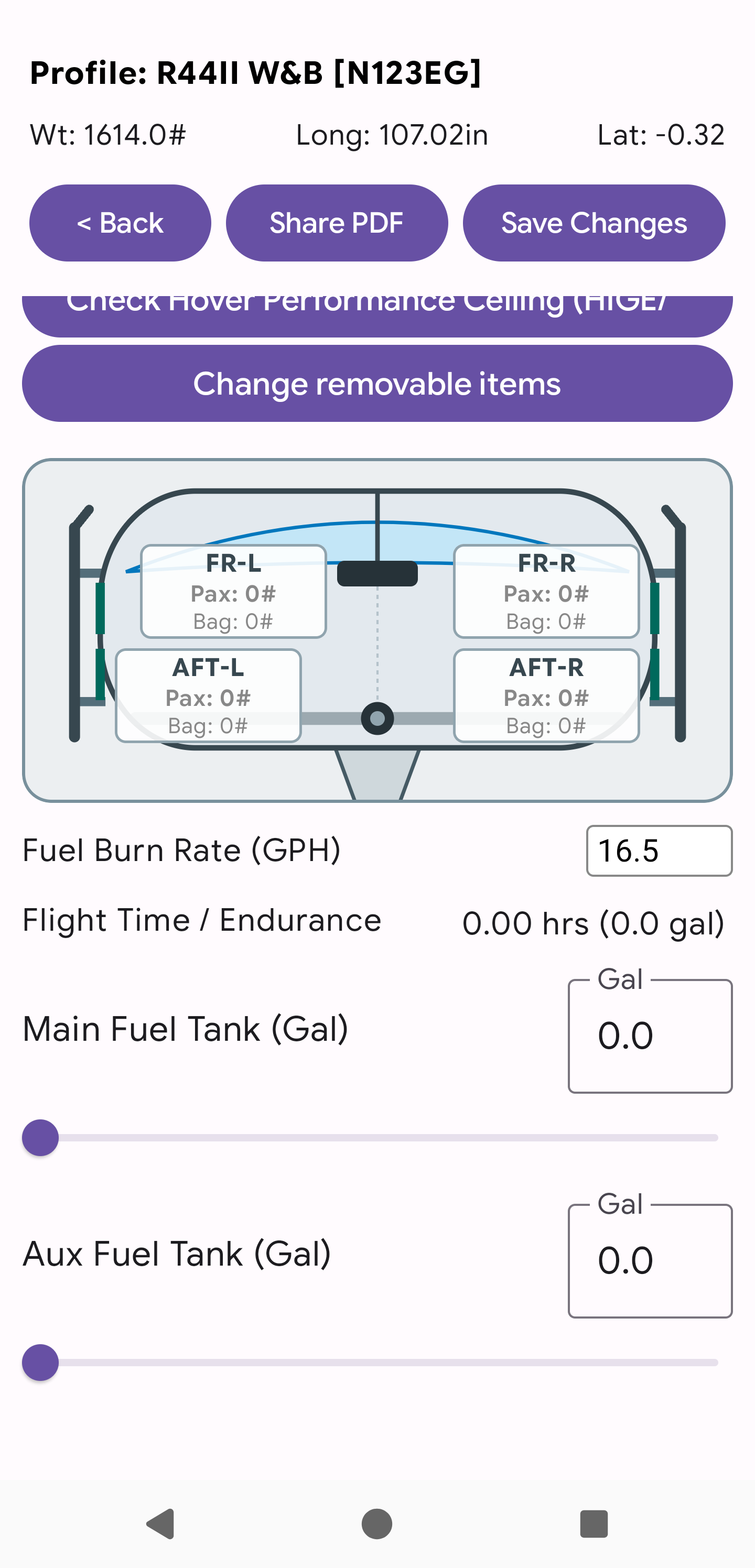
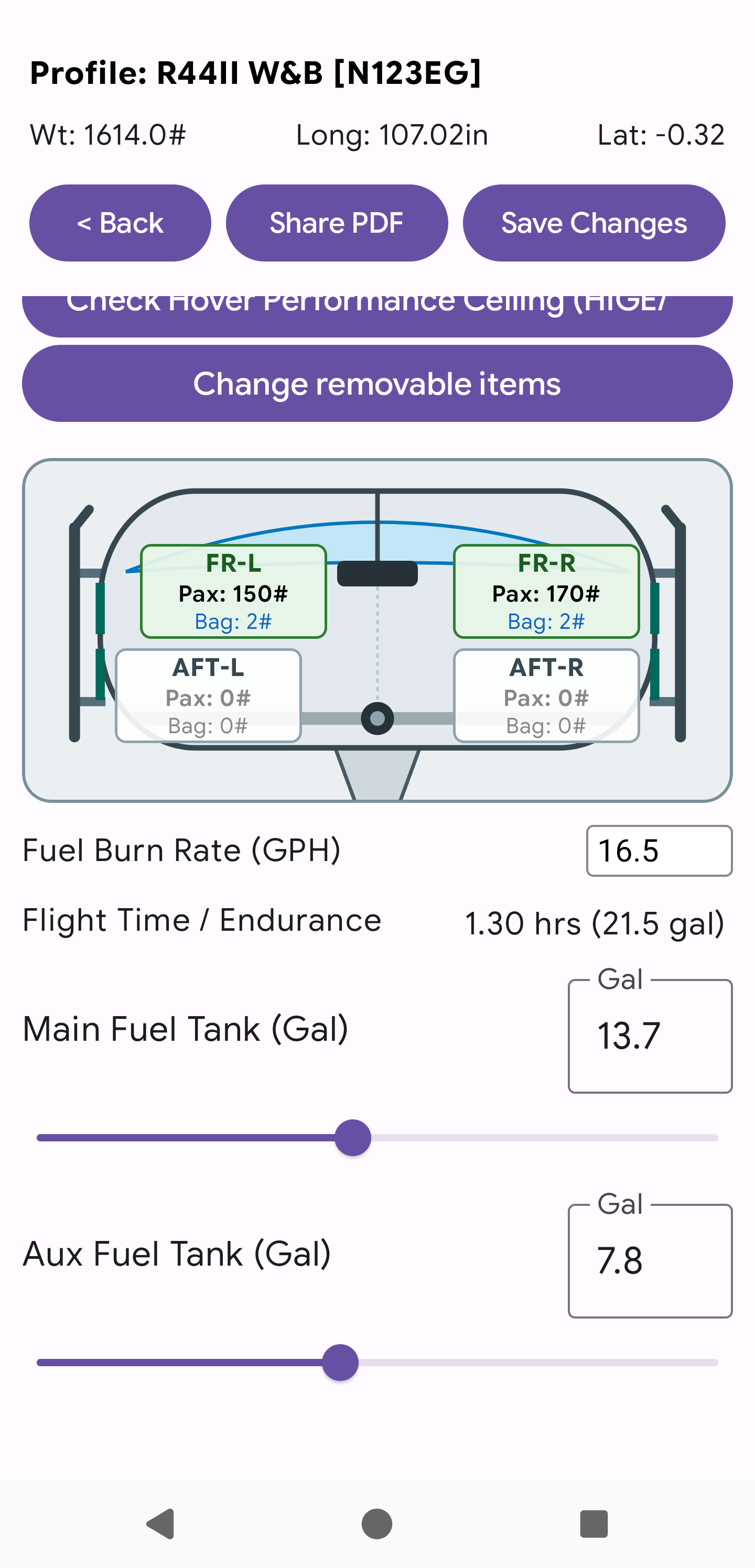
- Interactive Cabin Diagram: Tap any seat/baggage station (e.g.,
FR-L,FR-R,AFT-L,AFT-R) to enter passenger and baggage weights. - Fuel Burn & Tank Sliders: Adjust Fuel Burn Rate (GPH) and slide or type quantities for Main and Aux fuel tanks to compute total fuel and Flight Time / Endurance dynamically.
Verify CG Envelope Compliance & Loading Calculation
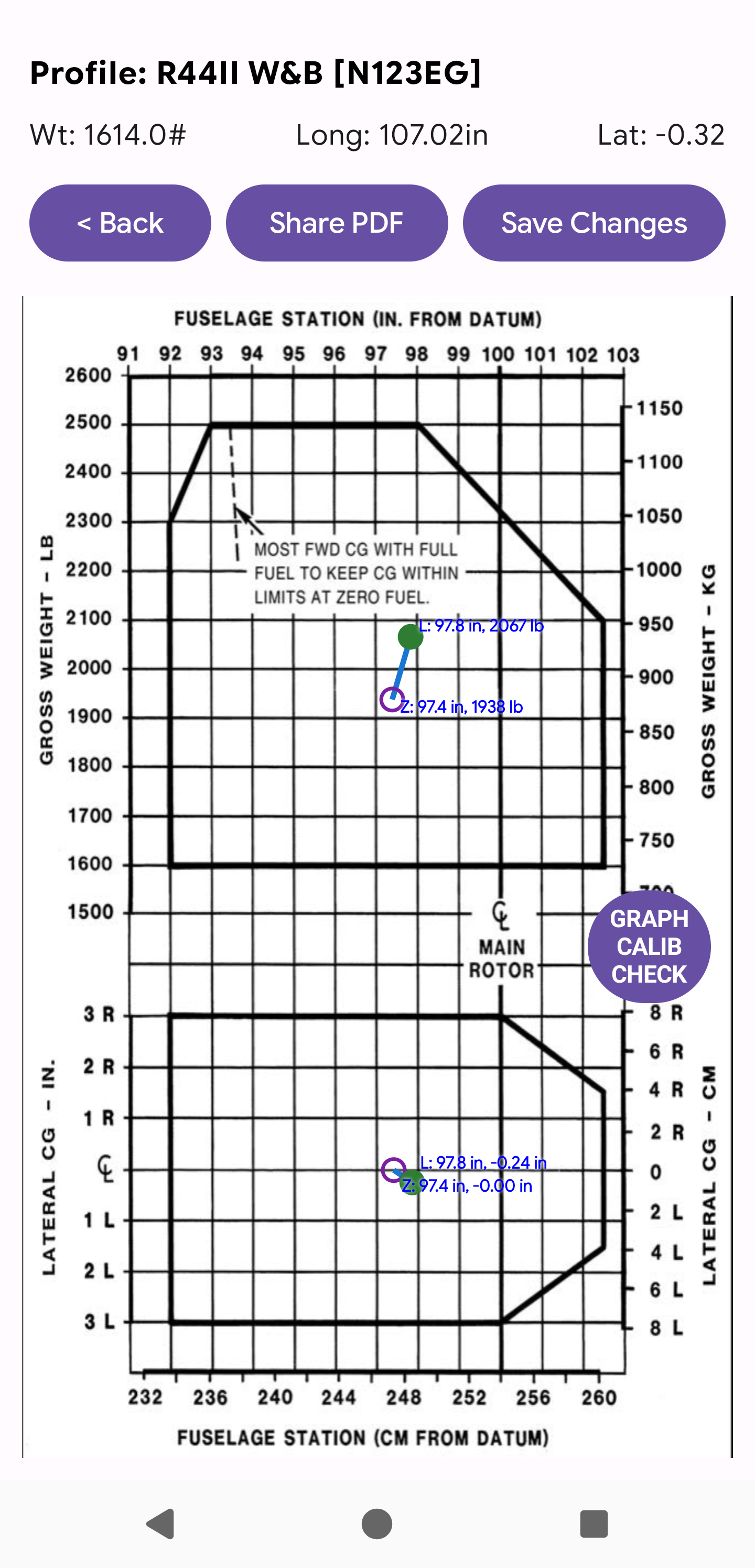
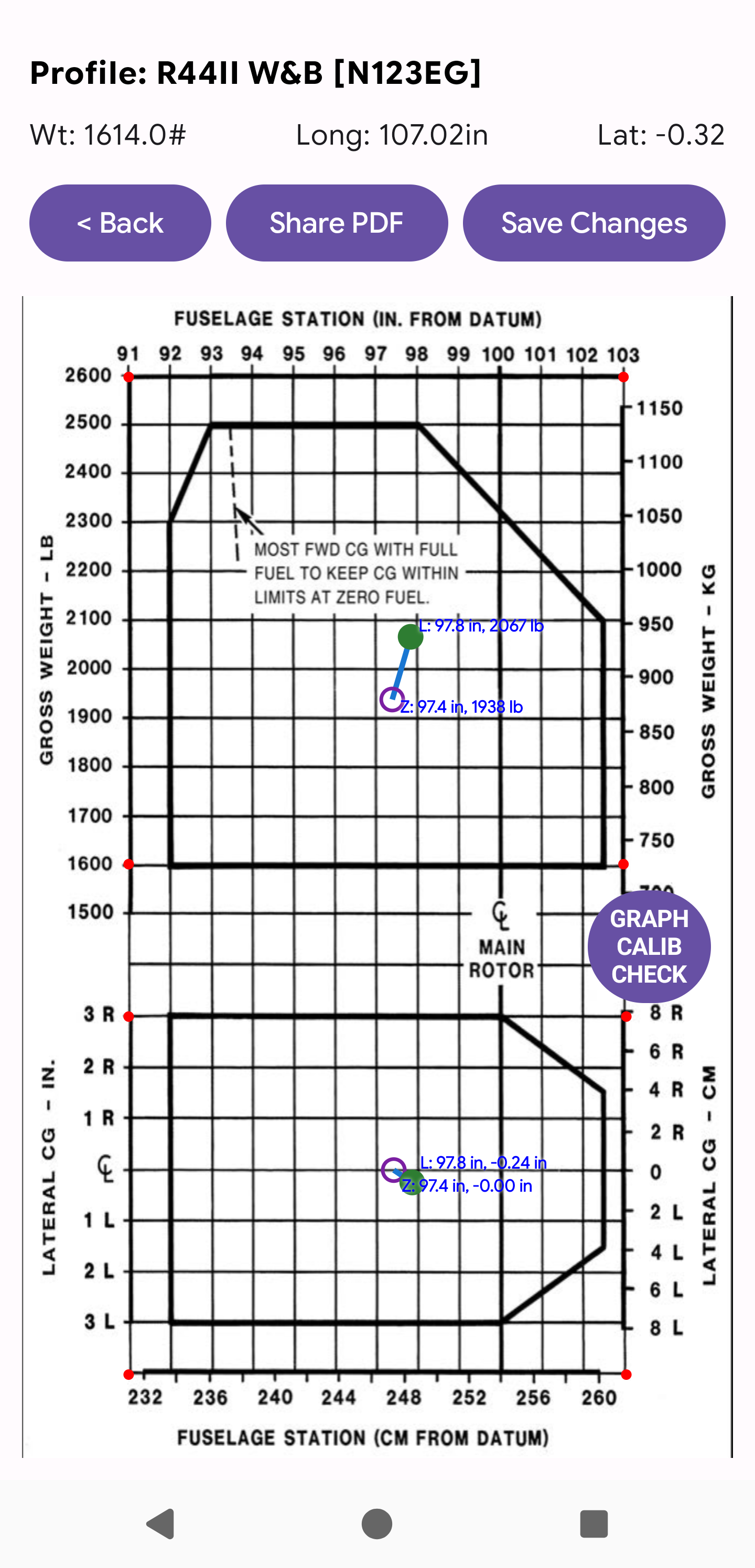
The app computes your center of gravity across both longitudinal and lateral envelopes and generates an itemized loading worksheet. Tap SEE CG ENVELOPE or SEE LOADING CALC to toggle each view.
- POH CG Envelope Charts: Inspect the Longitudinal and Lateral CG envelopes with the fuel burn line connecting Loaded Takeoff (
L) to Zero Fuel (Z) to verify the entire flight stays within POH/RFM limits. - Graph Calibration Check: Tap GRAPH CALIB CHECK to plot red corner calibration dots on the chart boundaries and verify overlay alignment against the POH grid.
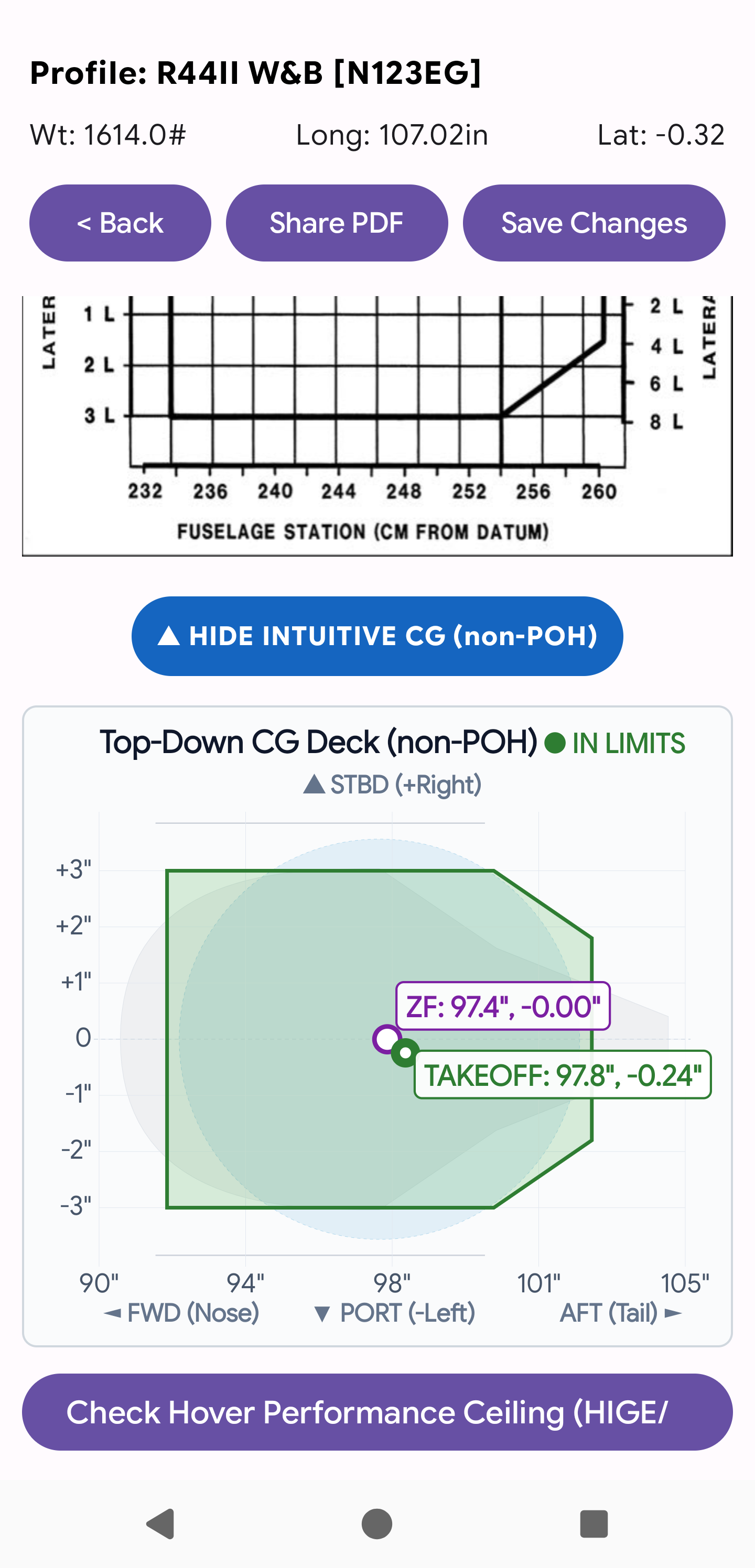
- Intuitive Top-Down CG Deck (non-POH): Optionally expand the top-down deck view for a quick visual check of Takeoff and Zero Fuel CG relative to FWD/AFT and PORT/STBD limits.
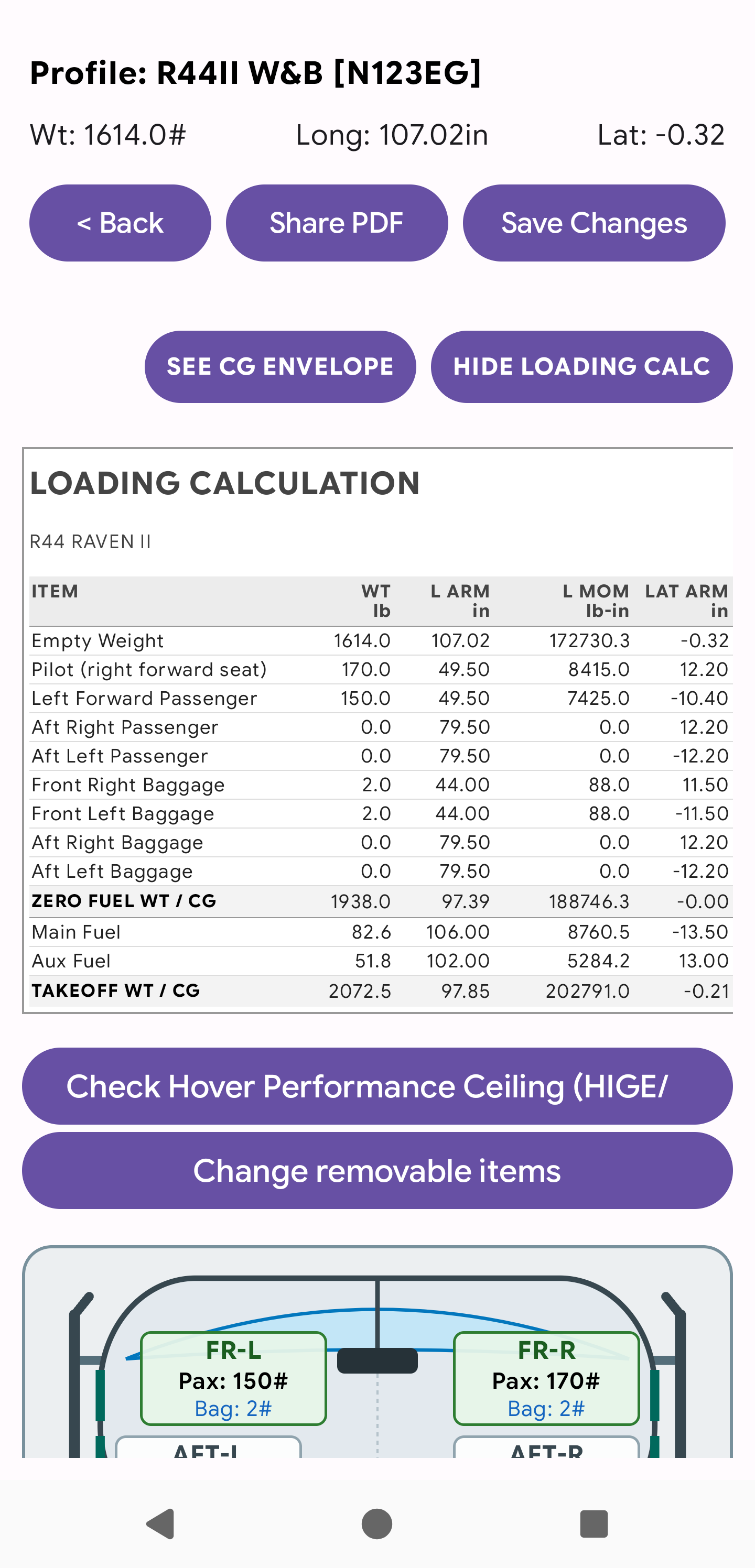
- Loading Calculation Table: Toggle SEE LOADING CALC to review every weight, longitudinal arm, moment, and lateral arm for Zero Fuel and Takeoff totals.
Check HIGE/HOGE Limits & Removable Equipment
Before pulling pitch, verify hover performance ceilings for current ambient conditions and configure any removed equipment.
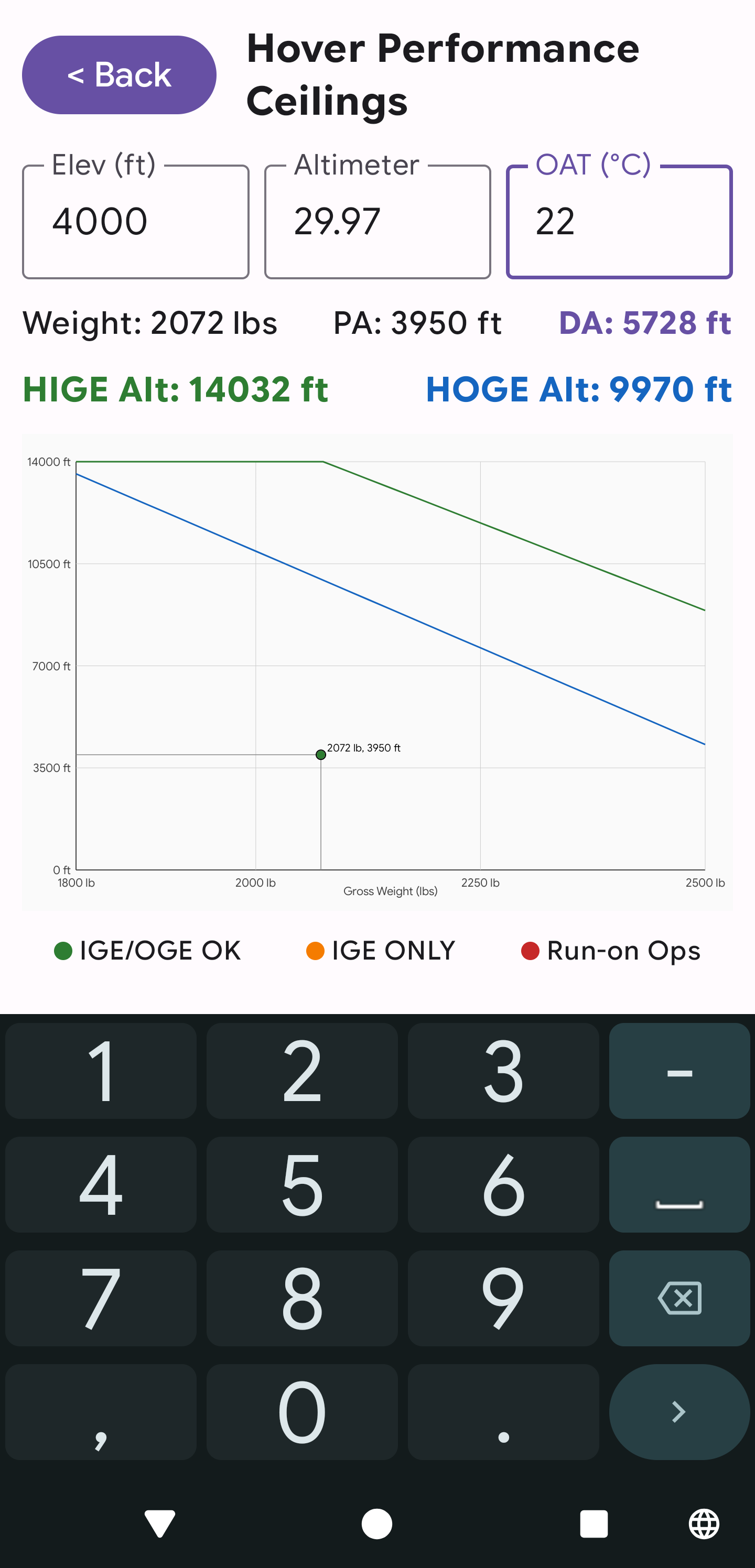
- Hover Performance Ceilings: Tap Check Hover Performance Ceiling (HIGE/HOGE) and enter Field Elevation or Altitude, Altimeter Setting, and Outside Air Temperature (OAT) to calculate Pressure Altitude (PA), Density Altitude (DA), HIGE/HOGE ceilings, and plot your operating point (IGE/OGE OK, IGE ONLY, or Run-on Ops).
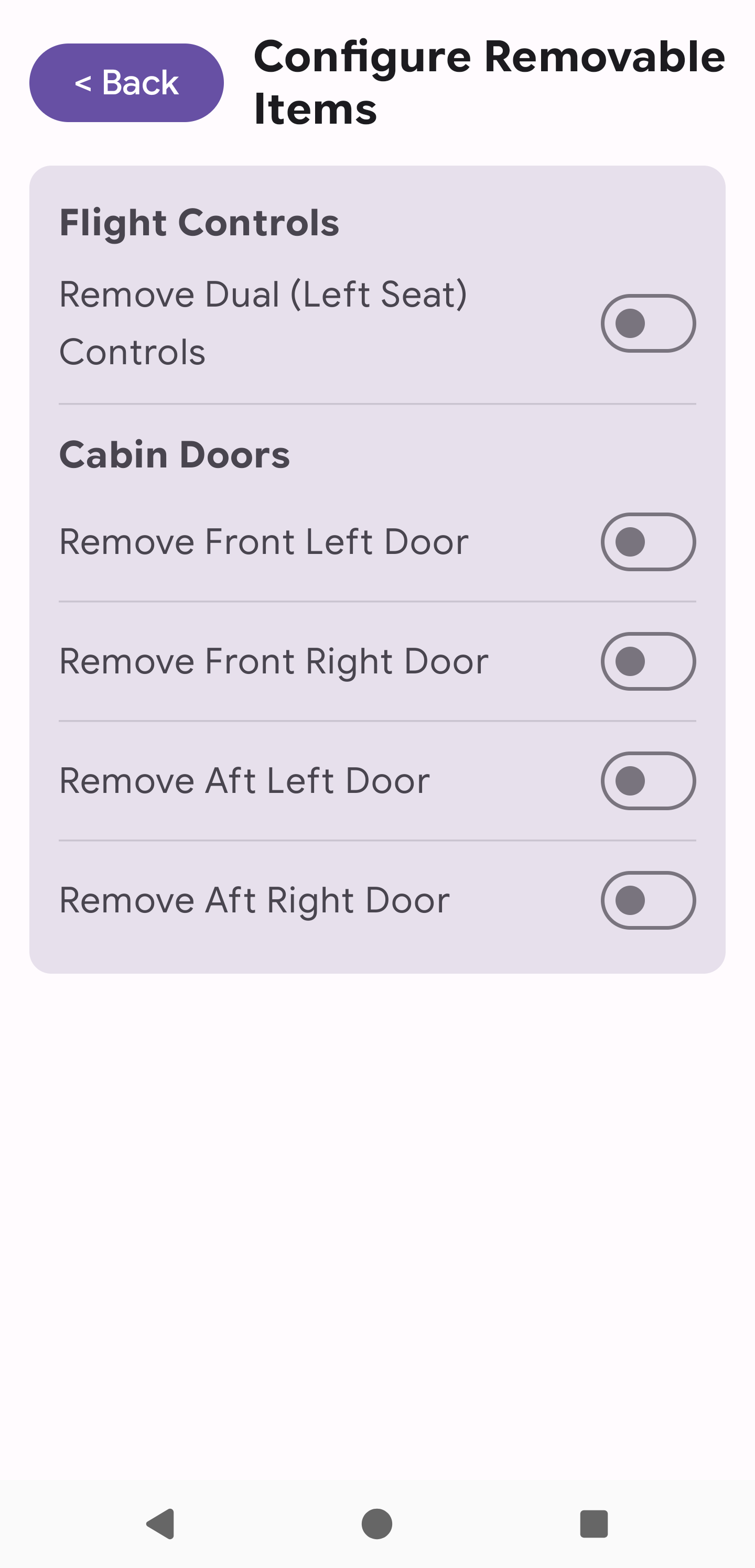
- Removable Items: Tap Change removable items to toggle dual flight controls and individual cabin doors, automatically updating empty weight and CG.
Manage & Create Custom Helicopter Types
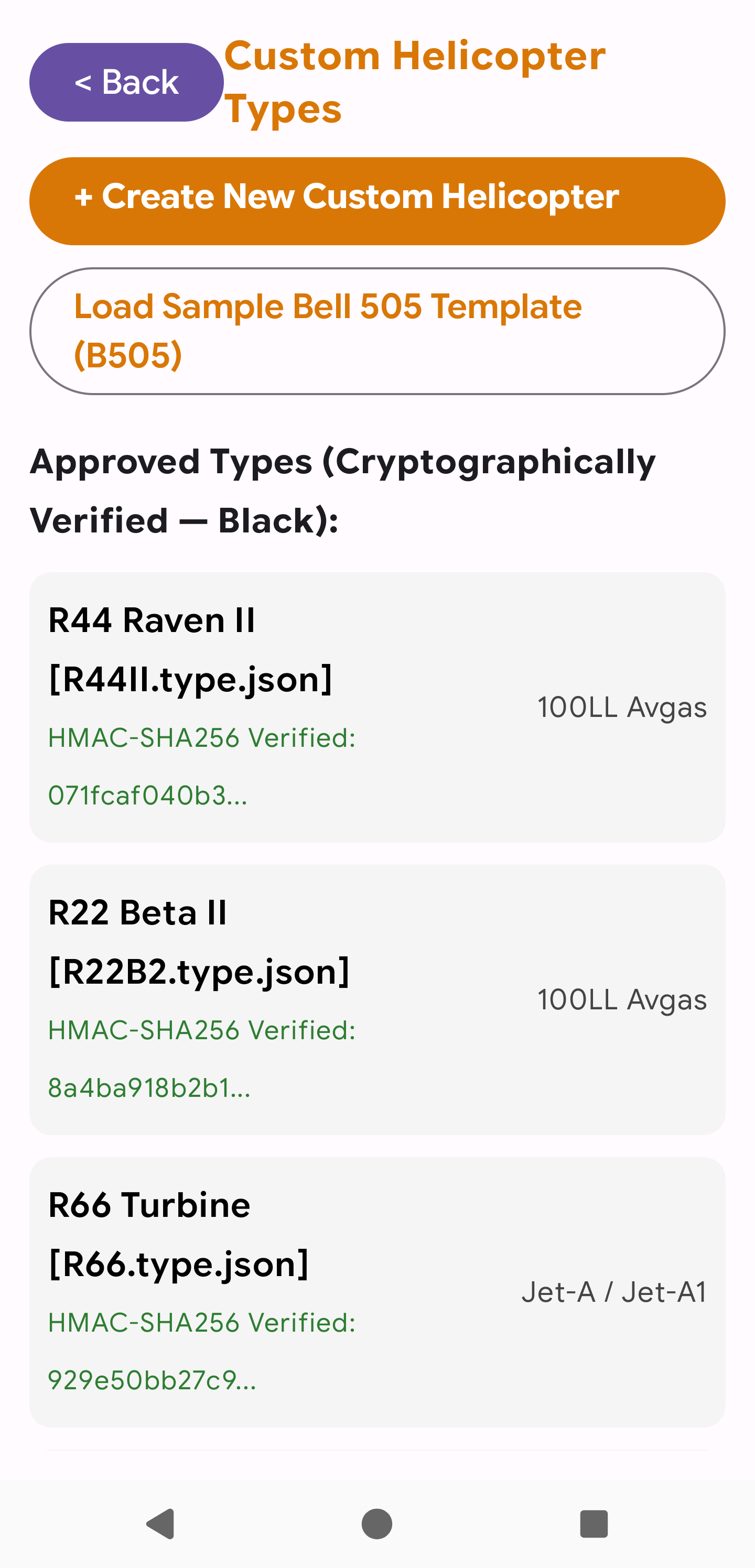
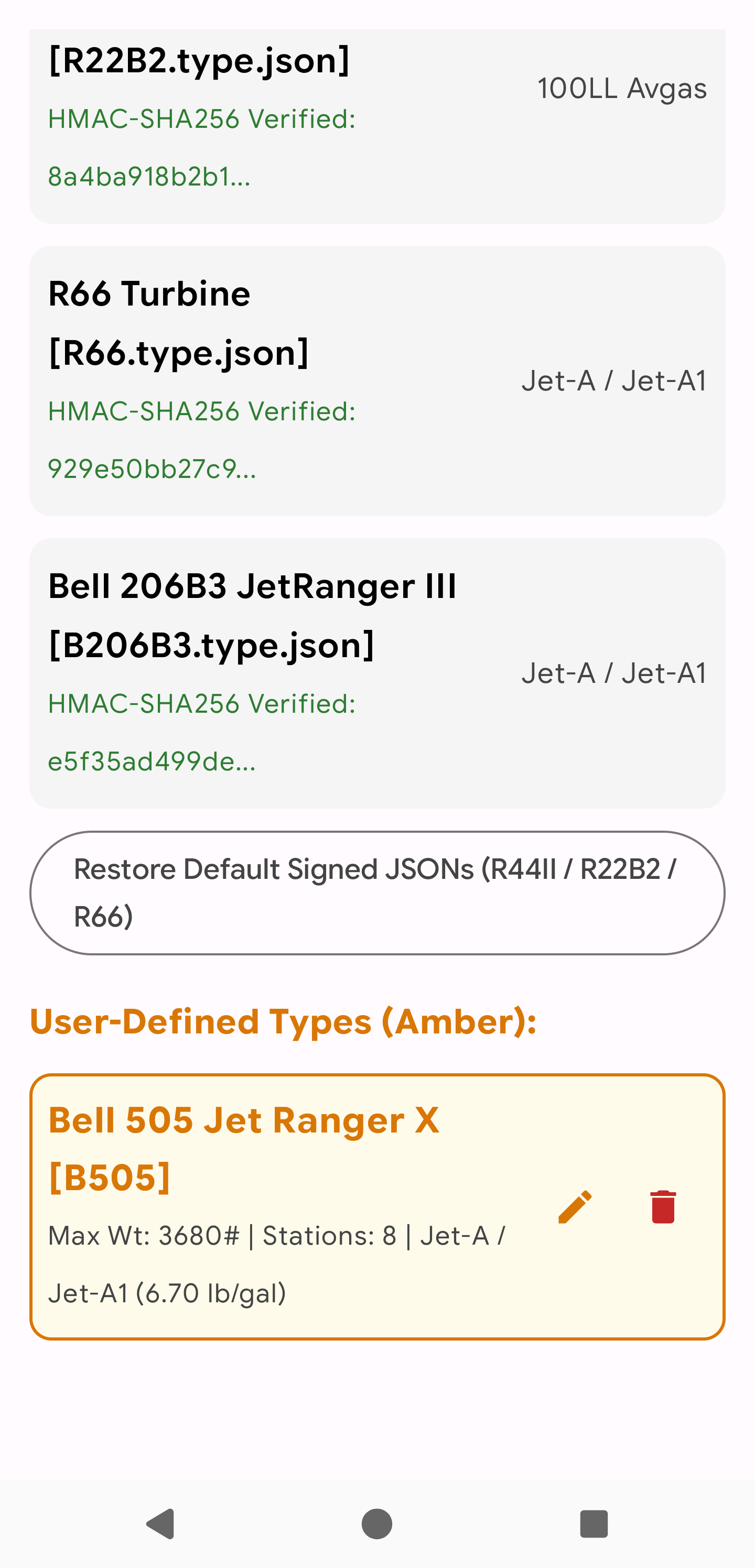
From the Main Screen, tap Manage Custom Aircraft Types to inspect cryptographically verified built-in aircraft definitions or create and edit your own custom helicopter types.
- Built-In & User-Defined Types: Approved built-in definitions (
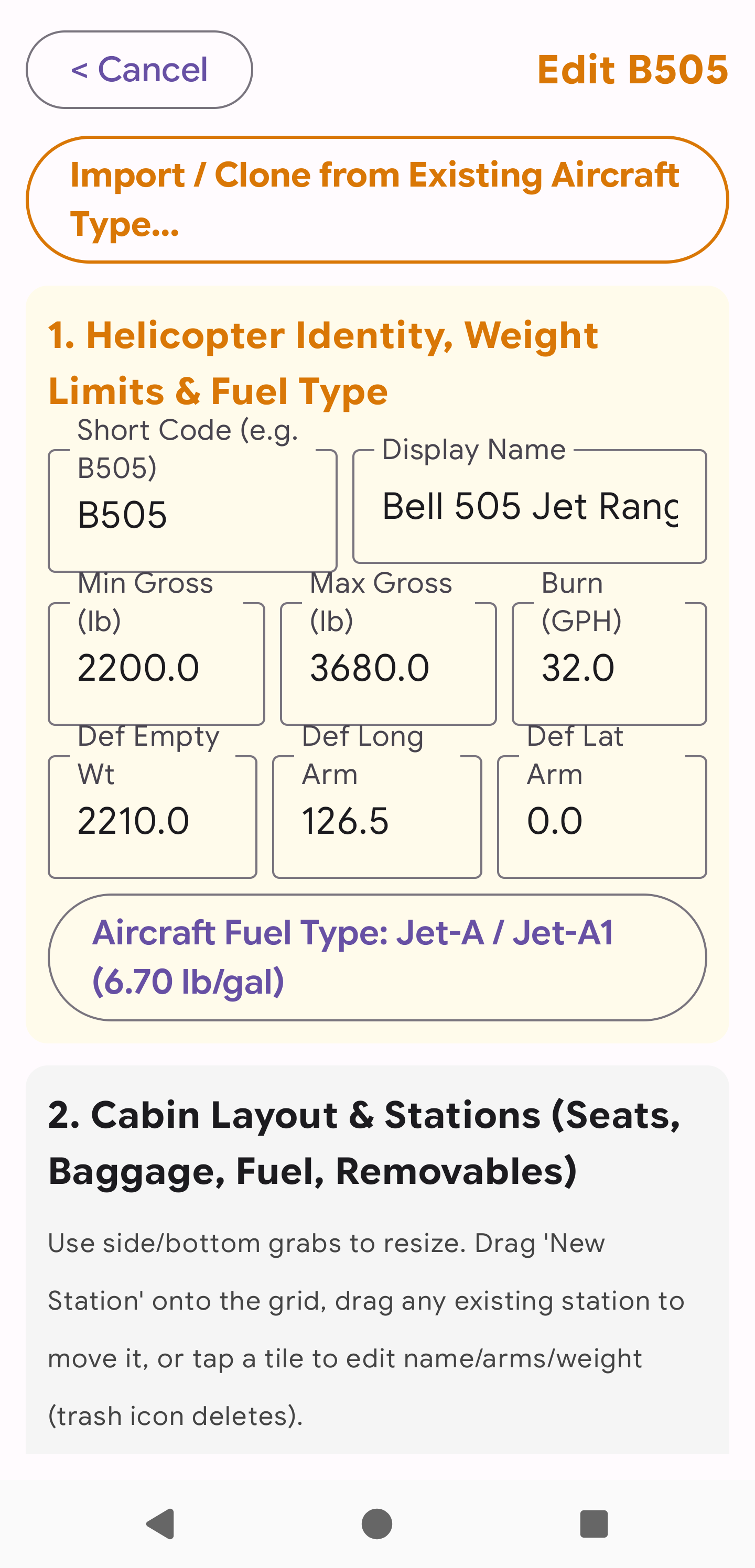
R44II,R22B2,R66,B206B3) are HMAC-SHA256 verified and shown in black, with a button to restore default signed JSONs. You can load the sample Bell 505 template or create new user-defined types (shown in amber). - Identity, Weight Limits & Fuel: Start from scratch or import/clone an existing type, then configure short code, display name, min/max gross weight, fuel burn rate, default empty weight/arms, and fuel type.
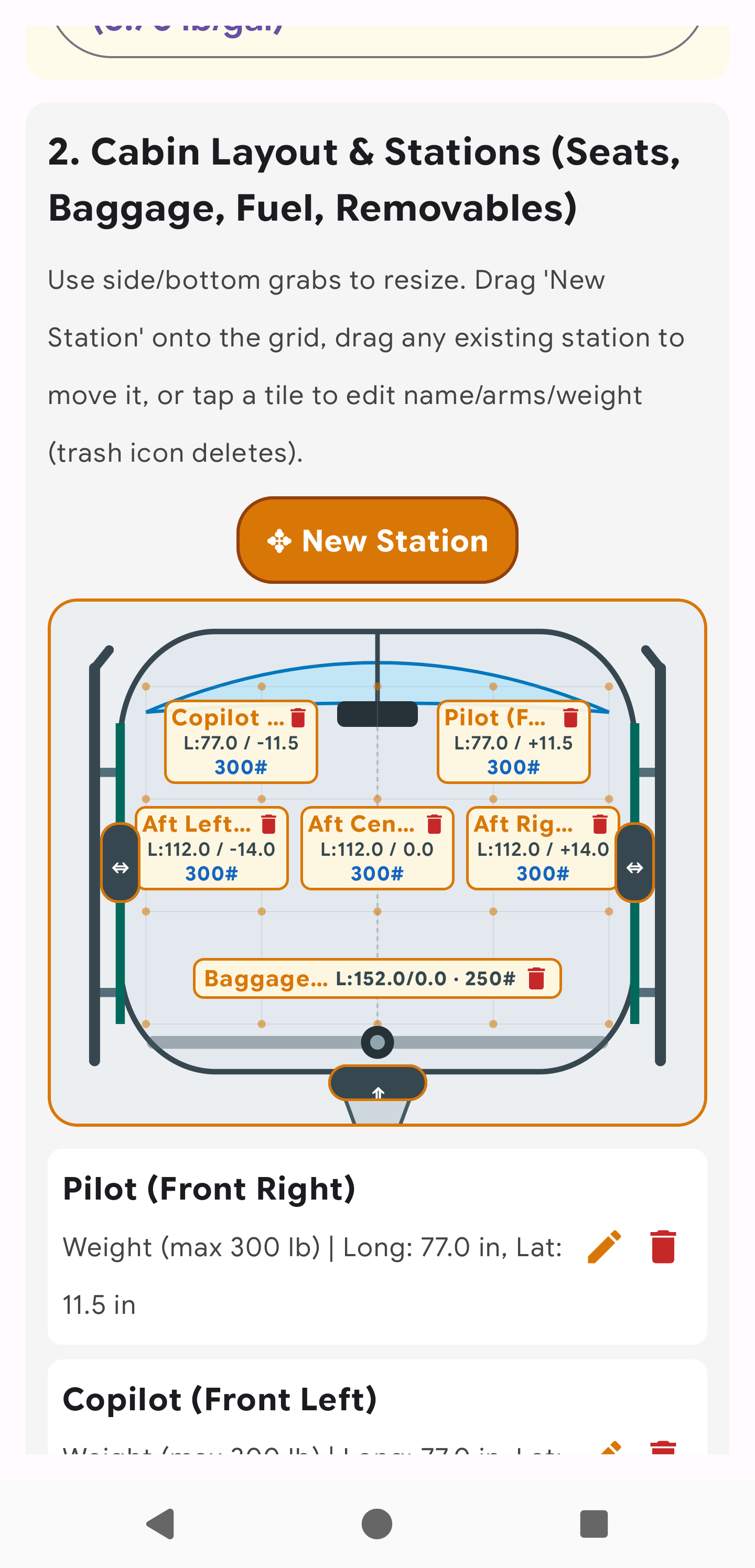
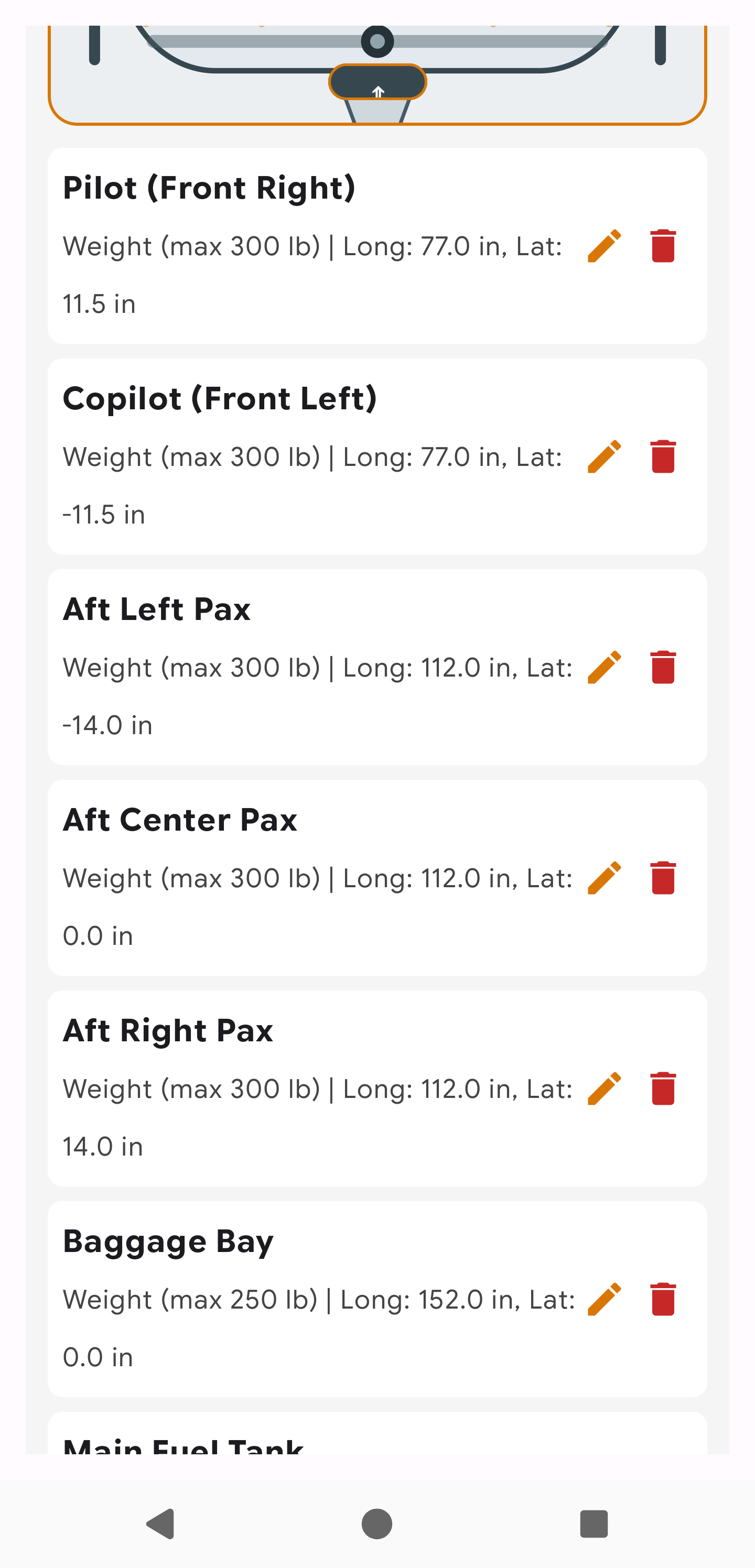
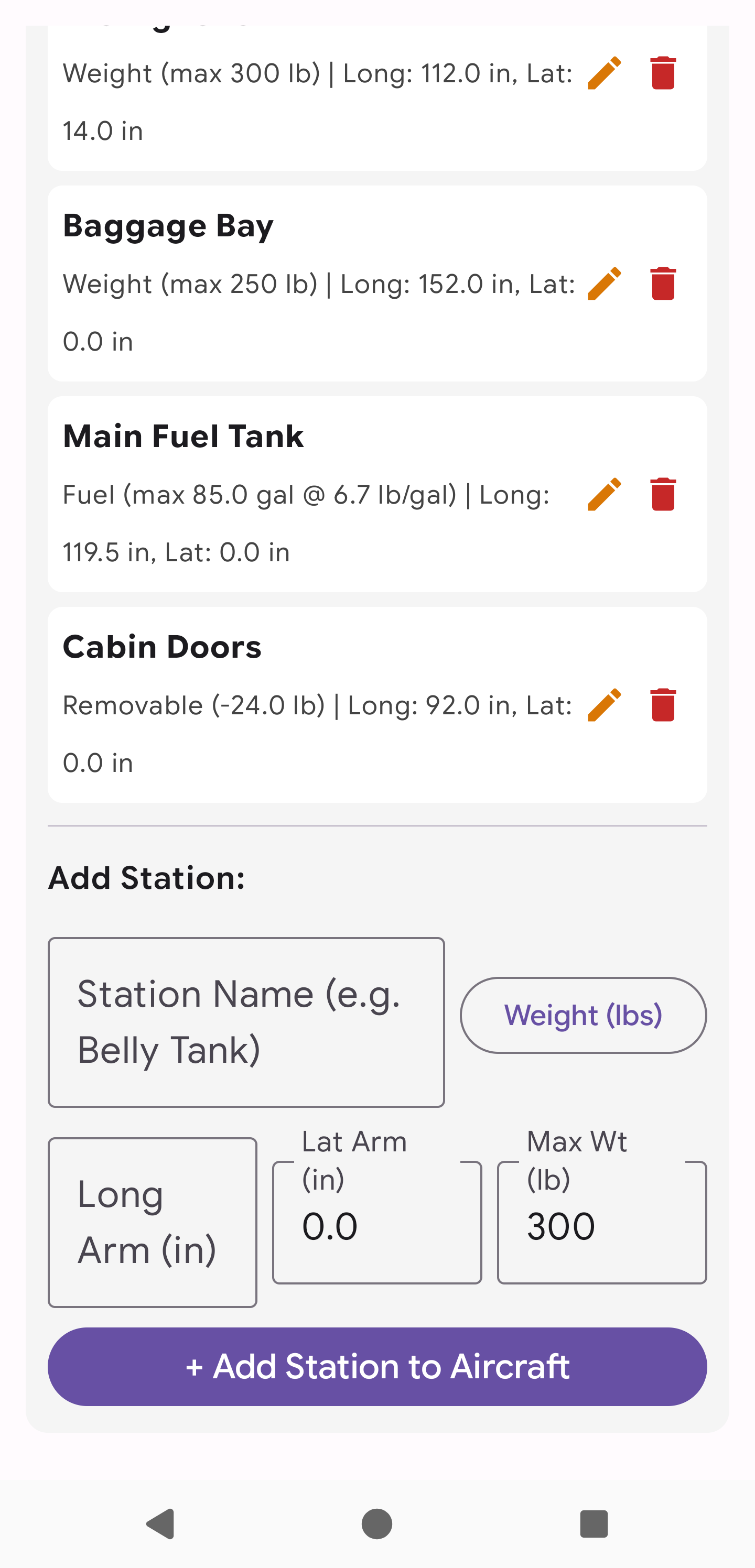
- Cabin Layout & Stations: Drag and drop seats and baggage stations directly onto the interactive cabin diagram, review and edit each station's exact arms and max weights, configure fuel tanks and removables, or add additional custom stations.
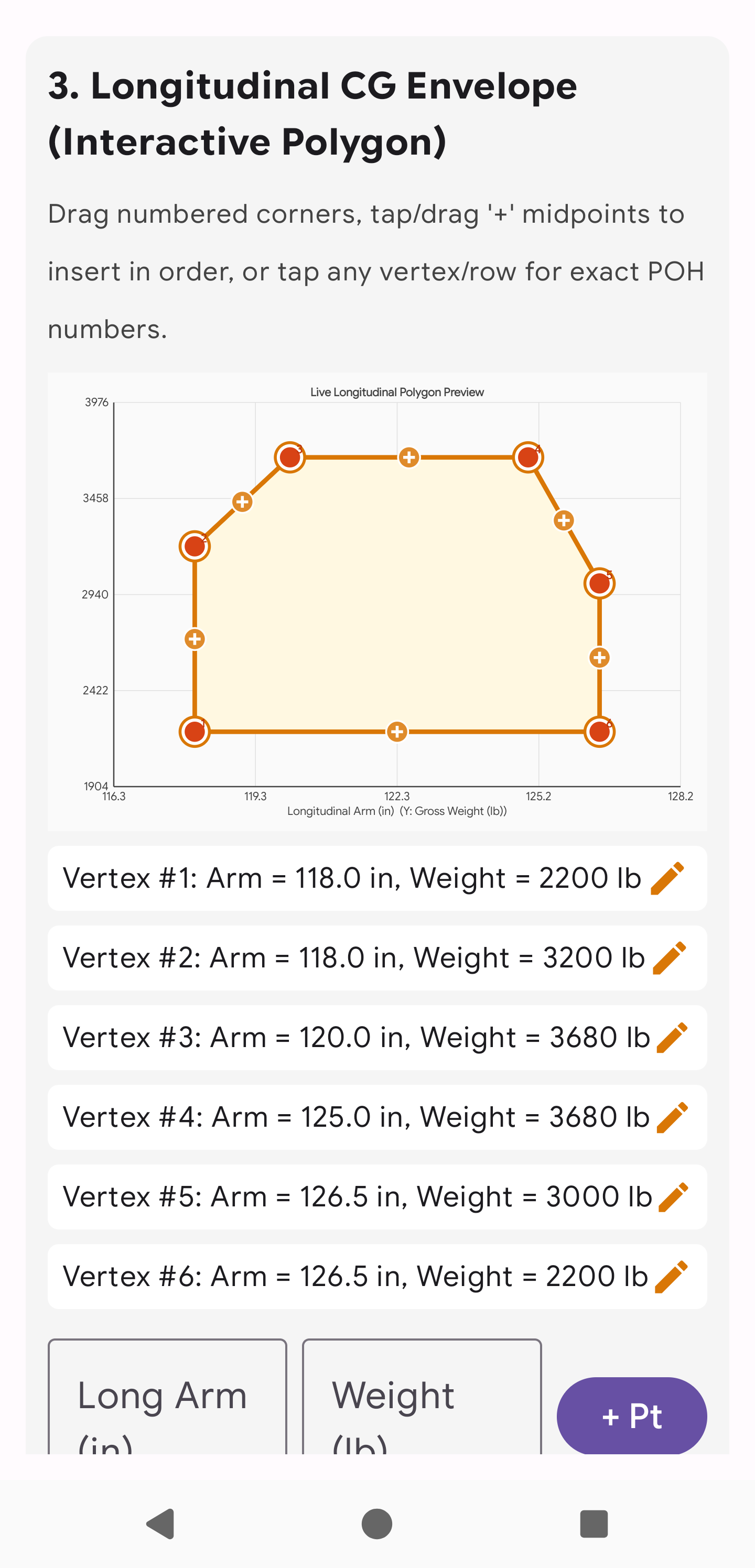
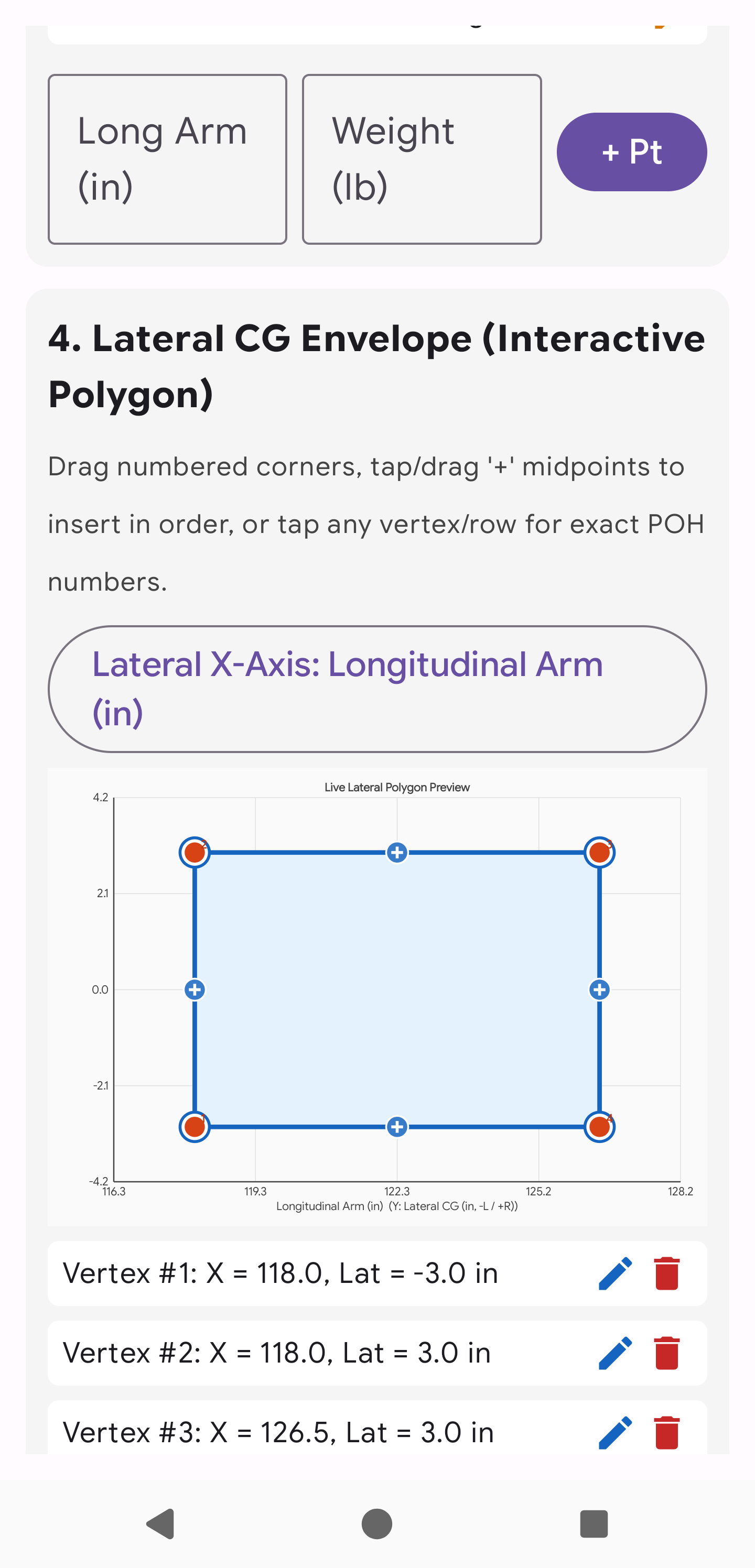
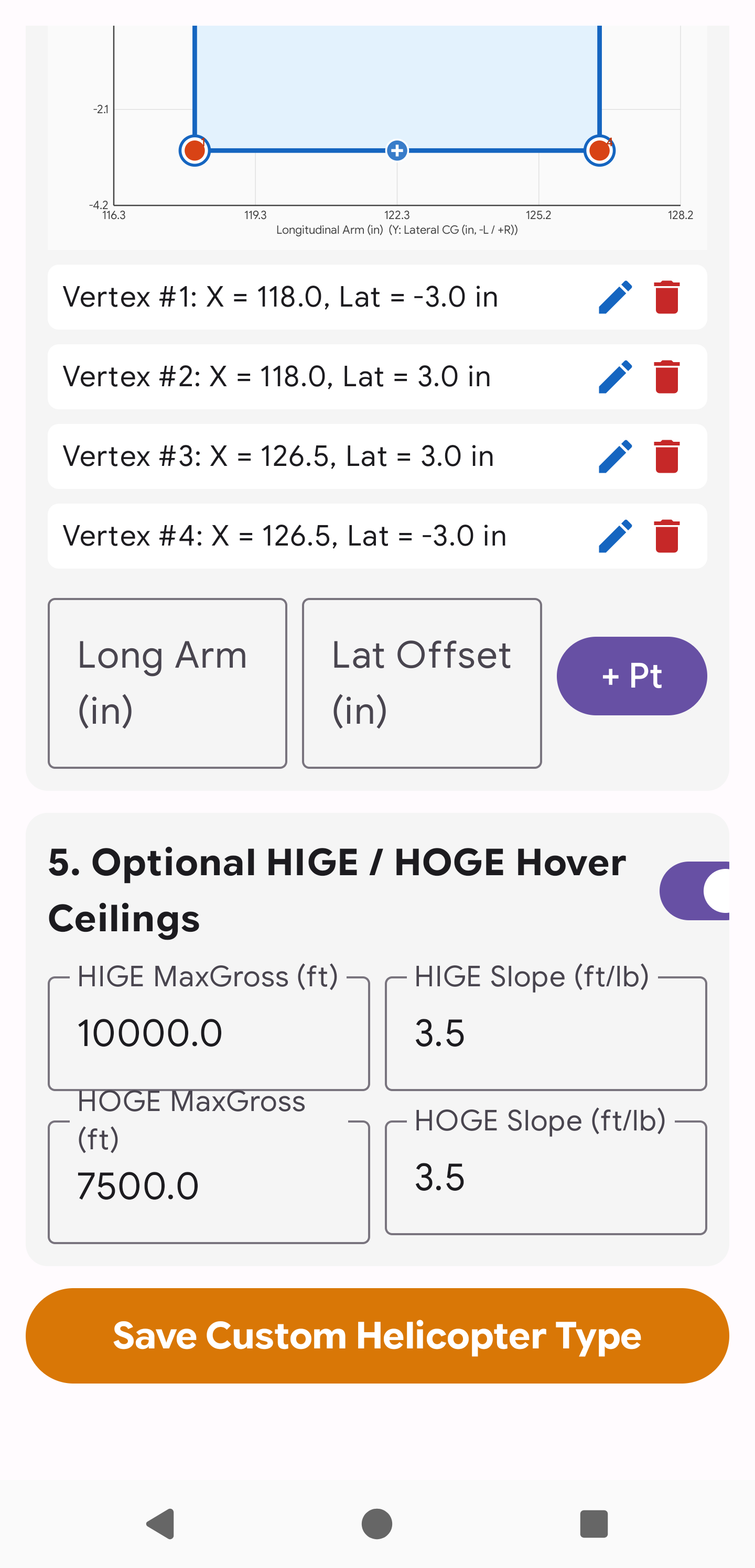
- Interactive CG Envelope Polygons: Define both Longitudinal and Lateral CG envelopes by dragging numbered polygon corners, tapping
+midpoints to insert vertices, or editing exact POH/RFM coordinates. - Optional HIGE/HOGE Ceilings & Save: Optionally enable HIGE/HOGE max-gross ceilings and weight slopes, then tap Save Custom Helicopter Type.
Run the Live POH Self-Test & Verification Report
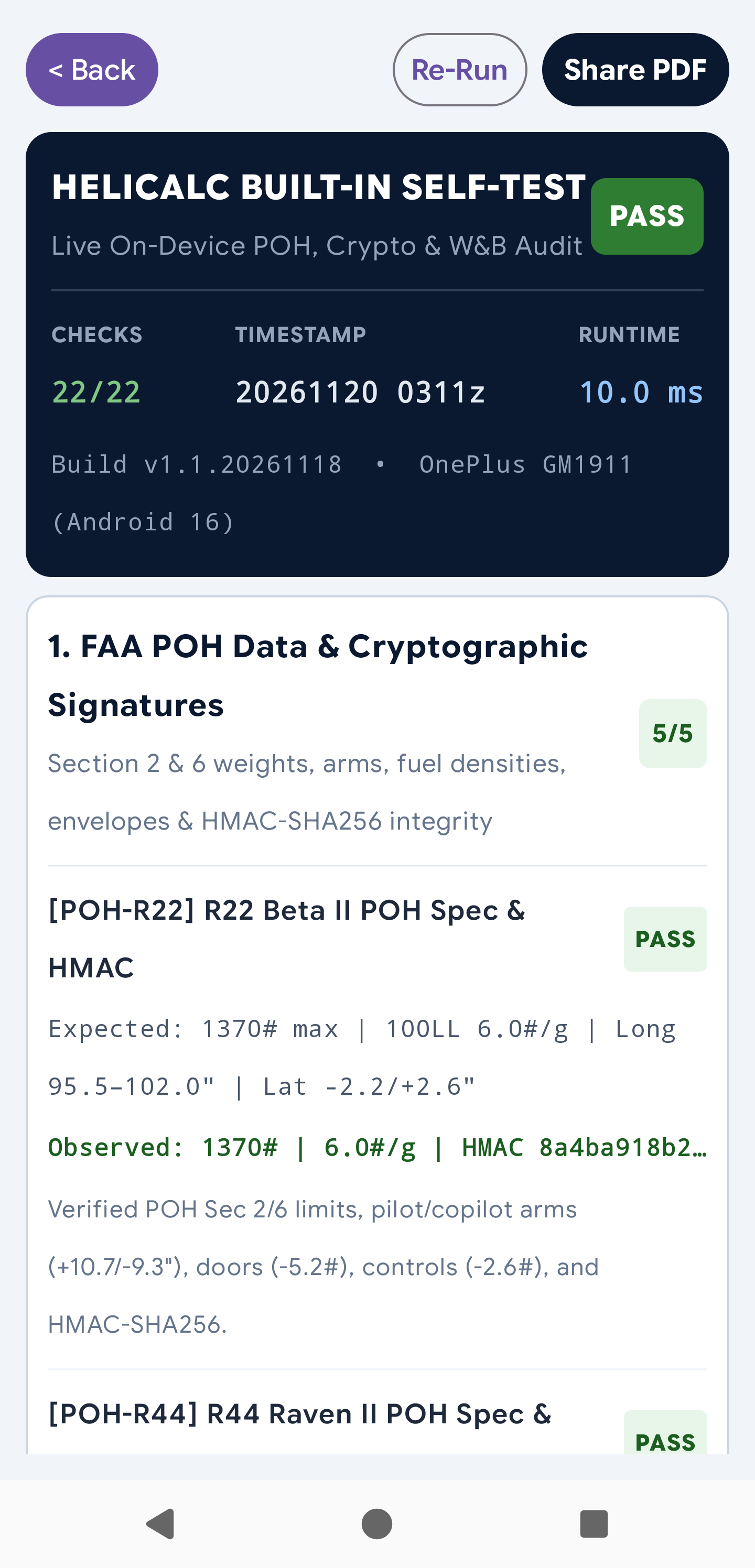
From the Main Screen, tap POH Self-Test & Verification Report to execute a live on-device Built-In Self-Test (BIT) across the active calculation engines and stored aircraft database. Tap Re-Run to re-execute on demand, or tap Share PDF to export an official Zulu-timestamped Verification Certificate.
- FAA POH Constants & HMAC-SHA256 Signatures: Verifies Section 2 & 6 weights, fuel densities, station arms, envelope limits, and cryptographic tamper rejection for
R22B2,R44II,R66, andB206B3. - On-Device Aircraft Database Audit: Reads every installed
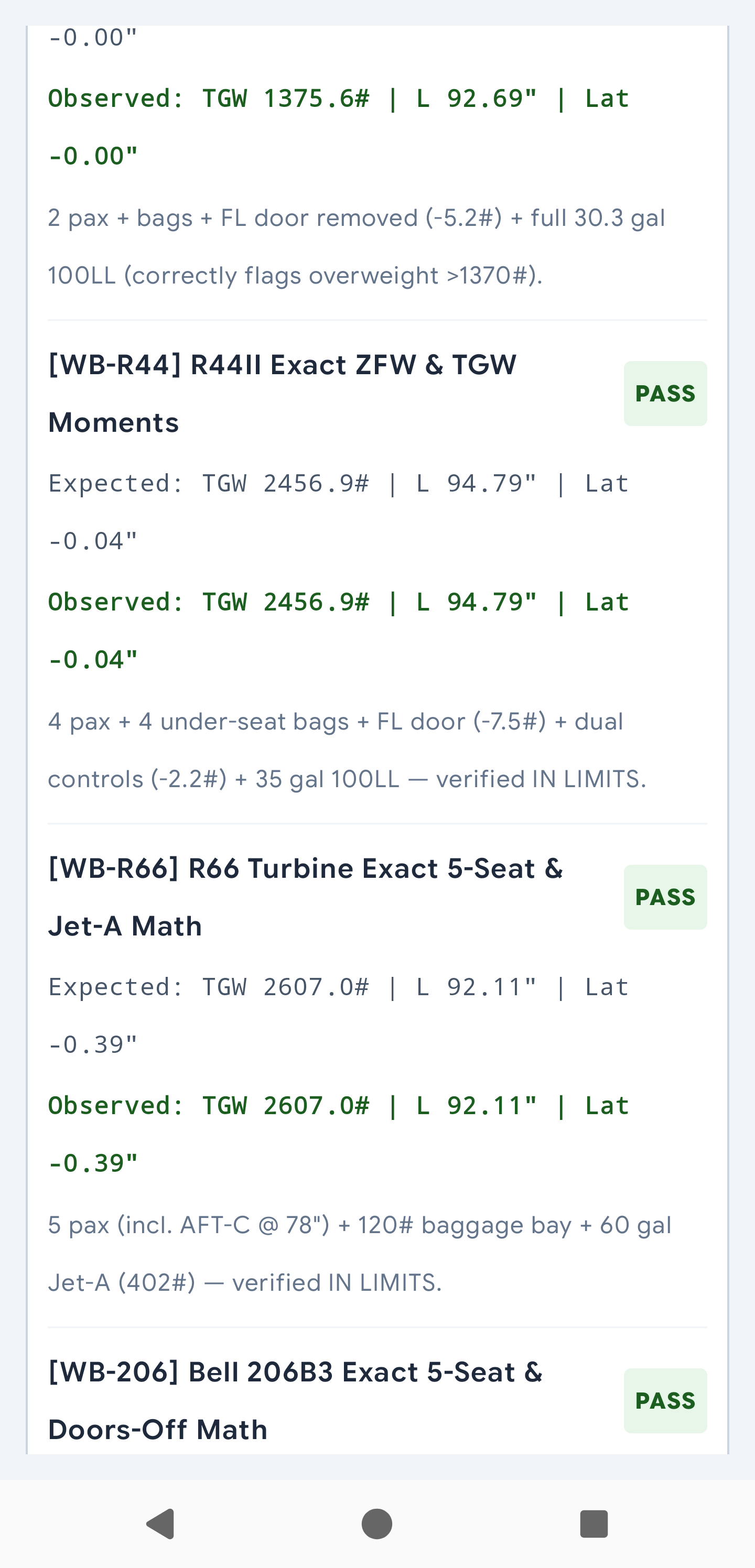
*.type.jsonfile directly from device storage to confirm approved files are untampered and transparently lists any user-defined (Amber) aircraft types. - Weight, Moment & CG Arithmetic: Runs worked Zero-Fuel and Takeoff Gross Weight/CG problems (including doors/controls removed, baggage, and Jet-A / 100LL fuel) and displays Expected vs. Observed values.
- CG Envelope & Boundary Protection: Verifies overweight flagging, forward/aft and slanted upper-taper longitudinal limits, slanted lateral corners, R22 asymmetric lateral limits, and exact on-boundary legality.
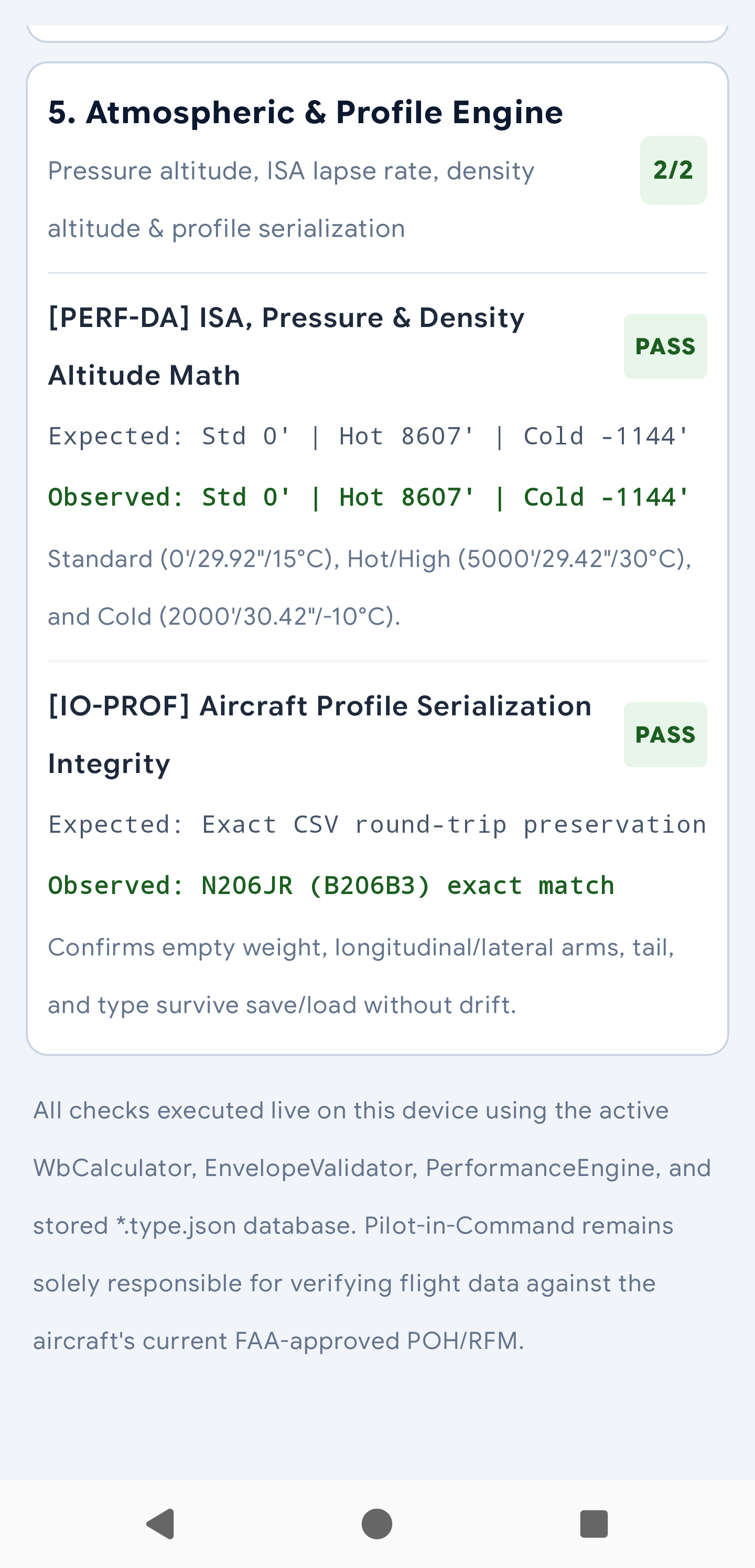
- Atmospheric & Profile Engine: Verifies Pressure Altitude, ISA temperature, Density Altitude, and aircraft profile CSV round-trip serialization.
- Sample Verification Certificate: Download Sample Live POH Self-Test Verification Certificate (PDF) (generated live on OnePlus 7 Pro, 22/22 PASS in 11.3 ms).